


Content aware fill is an advanced and powerful feature that allows users to effortlessly remove unwanted elements or fill in missing parts of an image while preserving the natural appearance and consistency of the surrounding area.
Maybe many people have only heard of Photoshop’s content aware fill tool. Today, we will recommend an easier online alternative to use content aware fill. Now, please read on! We will guide you on how to use content aware fill with these 2 excellent ways.
Here is an example image created using FlexClip's AI content aware fill tool.
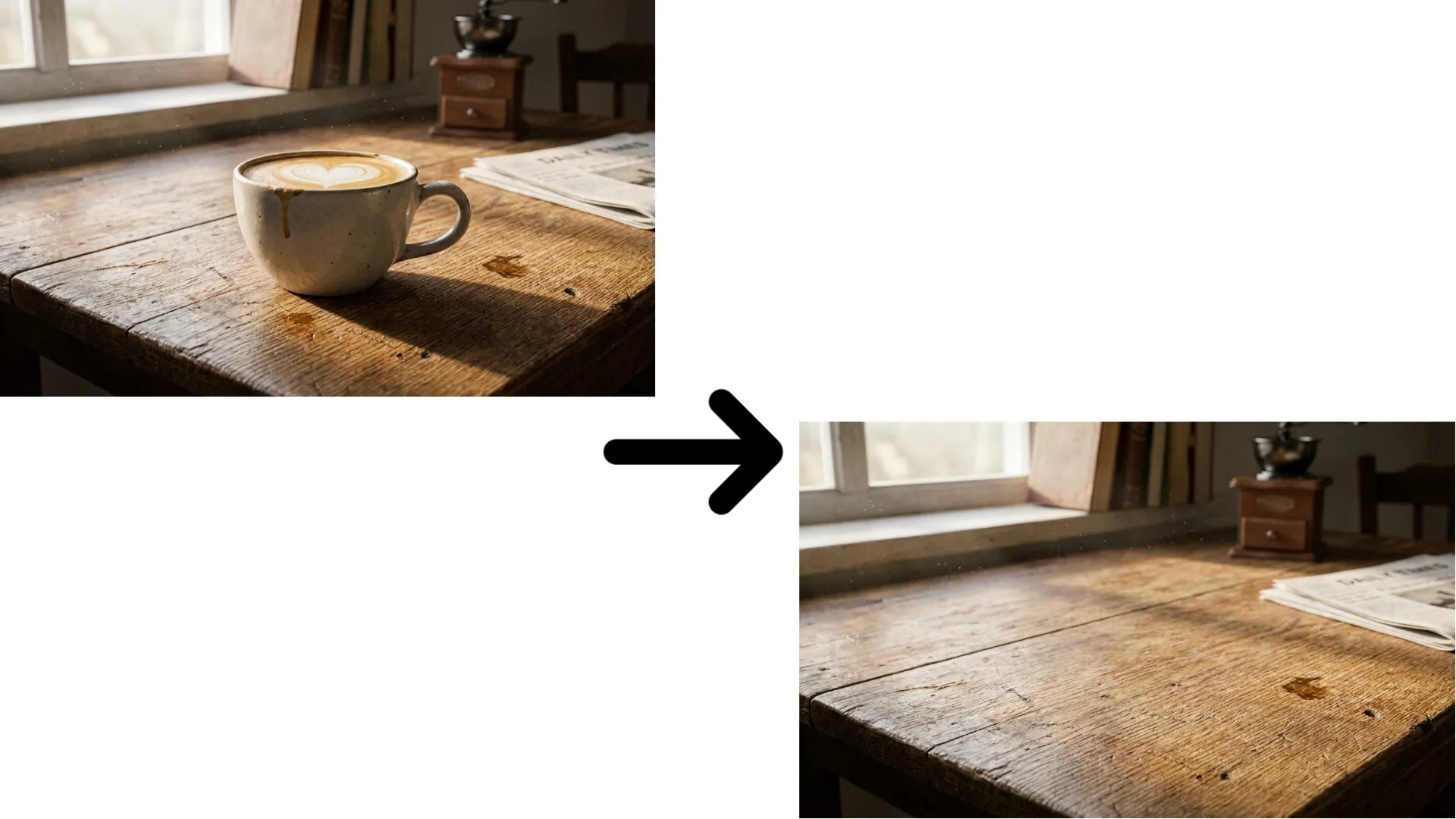
Content Aware Fill Example Image - FlexClip




Part 1 How to Use Content Aware Fill Online in FlexClip
We will recommend an excellent way for you to use content aware fill online - FlexClip. You can try FlexClip’s content aware fill feature to help you remove unwanted parts quickly. It’s designed to be user-friendly and efficient, so you can achieve great results in a short amount of time.
FlexClip’s AI photo editor can help you to easily achieve AI content aware fill effect. Say goodbye to the past complicated, time-consuming workflow. You can upload a new image and tell AI your ideas, then you can see a new image that aligns with your needs and thoughts in a snap. Moreover, you can also choose to add anything you want to the image with its AI photo editor. Transform your creative ideas and funny attempts into reality with text prompts.

AI Photo Editor - FlexClip
FlexClip’s AI object remover is a great alternative option for users looking to remove unwanted objects or people from their photos. It can automatically remove people, text, logos, watermarks, and any other unwanted objects from photos. Whether you want to remove person in your photo to get a cleaner result or remove object from background to enjoy the clean beauty, this content aware fill tool will help a lot. You don't need complex software such as Adobe Photoshop anymore. Once you select the unwanted object in the photo with FlexClip’s content aware fill tool, it is automatically removed from the photo as if it were never there.

AI Object Remover - FlexClip
FlexClip also provides many AI image editing tools to accelerate your photo creation process. For example, its AI Image Extender can easily expand your images beyond boundaries to get a bigger background or adjust the aspect ratio while preserving the original parts. You can broaden your image to any ratio for different platforms. Its 2D Image to 3D Animation Converter can transform your images into 3D animations and bring still pictures to life. There are more possibilities waiting for you to explore.

AI Image Extender - FlexClip
Method 1 Content Aware Fill with AI Photo Editor
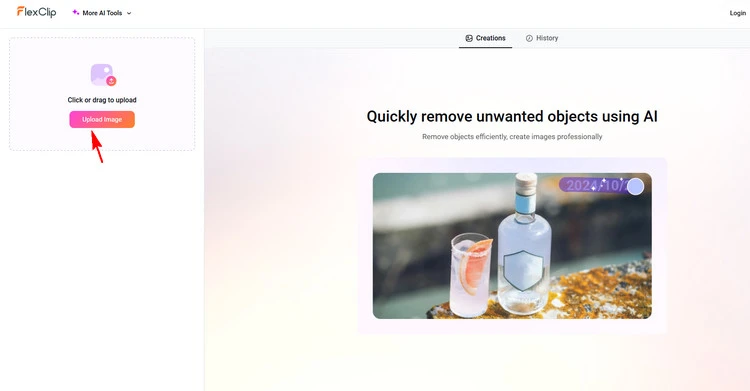
Upload Your Photo - FlexClip
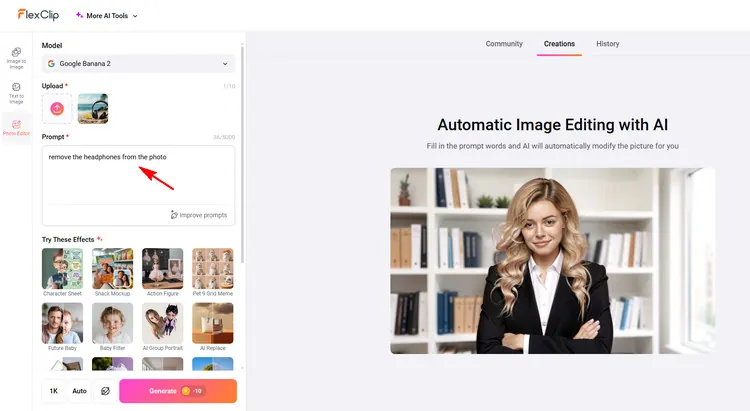
Content Aware Fill - FlexClip
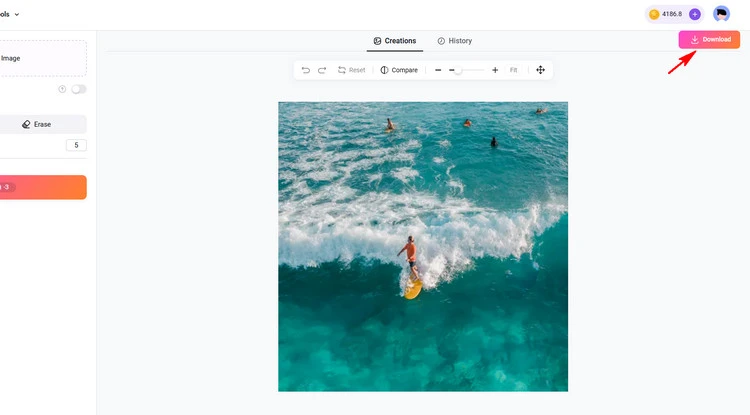
Download Your Photo - FlexClip
Method 2 Content Aware Fill with AI Object Remover
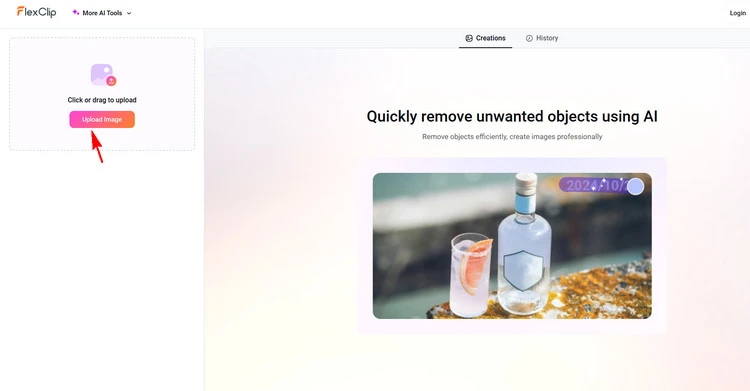
Upload Your Photo - FlexClip
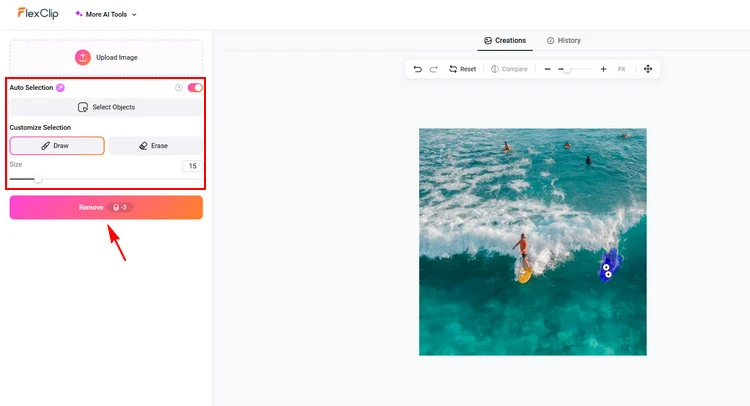
Upload Your Photo - FlexClip
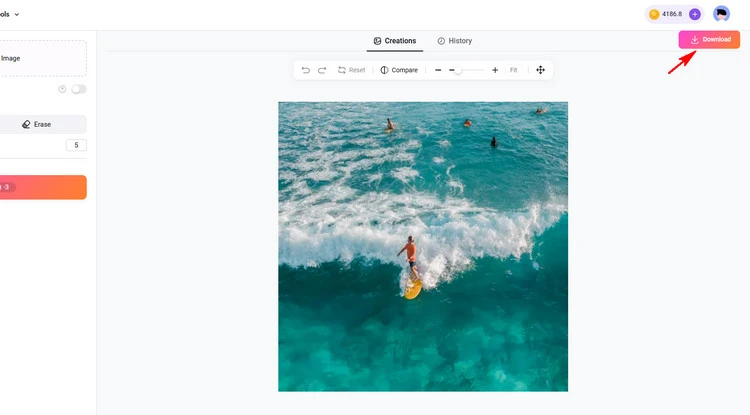
Upload Your Photo - FlexClip
Part 2 How to Use Content Aware Fill in Photoshop
If you want to know more about how to use content aware fill in Photoshop, we’ll introduce more to you!
Adobe Photoshop’s Content-Aware Fill tool can help you to battle with unwanted items or missing pieces in your photographs. This powerful tool in Photoshop has become a favorite among photographers and hobbyists alike, thanks to its ability to effortlessly remove unwanted elements and enhance photos. It is achieved through an intelligent algorithm that analyzes the patterns, textures, and colors found in the neighboring pixels and generates a fill that closely matches the original content. The Content-Aware Fill workspace provides an interactive editing experience for ultimate image control. Use the live full-resolution preview as you refine the sampling area Content-Aware Fill uses and adjust the settings to achieve amazing results.
To use the Content-Aware Fill AI in Photoshop, start by selecting the object you want to remove using a selection tool such as the Lasso or Marquee tool. Then, go to Edit > Content-Aware Fill, adjust the settings in the Content-Aware Fill dialog box, and click OK to apply the changes. Photoshop will analyze the surrounding areas and intelligently fill in the selected area with matching content, seamlessly blending the result with the rest of the image.
And you can watch the video below to easily learn how to use content aware fill in Photoshop step by step.
The Final Words
That’s all for how to use content aware fill effortlessly in Photoshop and FlexClip. If you find this post helpful, please share it with others. By the way, FlexClip can help you do more video/photo editing, like generating AI video, creating 3D photo animation and so on. Have a try!




FlexClip AI Video Maker
Reach professional-quality videos faster with easy editing tools, templates, and smart AI.
Start Now for Free
Hot & Trending
-

7 Best Ways to Find Music in YouTube Videos
-

Instagram Story Video Quality Bad After Upload? Fix It!
-

How to Repost Video on TikTok & How to Remove TikTok Repost
-

Improve Video Quality Online: 3 AI Video Quality Enhancers You Can't Miss
-

4K Convert to HD 1080p without Watermark: Best 4k Video Converters
-

Top 13 Birthday Video Makers with Music and Effects Free
-

How to Search Filters on TikTok & Use a Filter You See - TikTok Filter Guide
-

Large Collection of Creative and Funny Birthday Video Ideas for Ones You Care




